Free · no signup · what you enter stays in your browser. To pick up where you left off, check “Keep on this device” in the editor.
Plan how many tables you need, how many seats each one has, and who sits where. Full tables refuse extra guests, and guests who declined after you seated them are flagged so you can remove them from their tables.
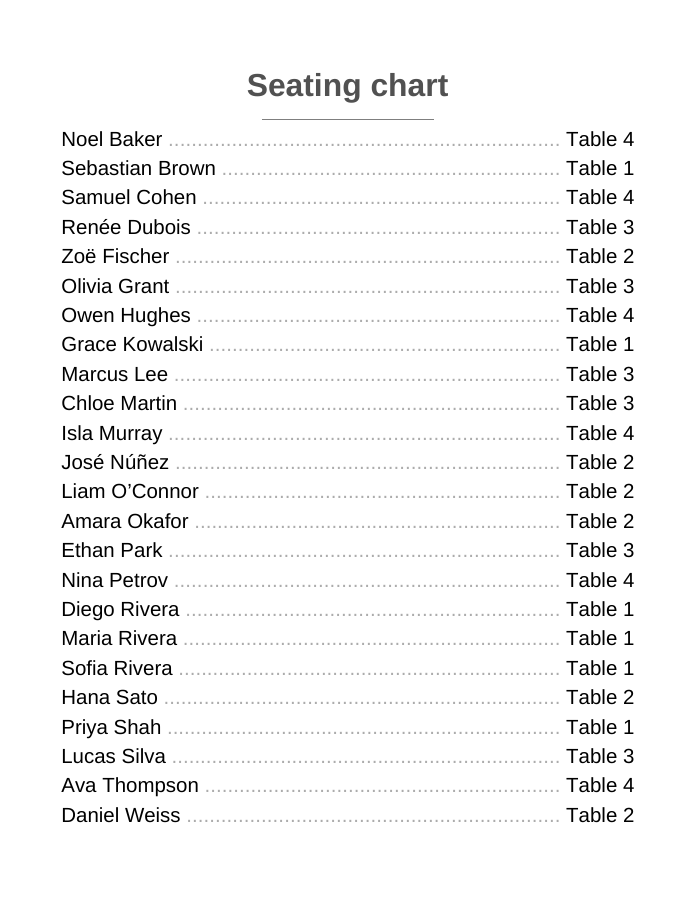
Page 1 of a sample PDF made with the editor from a made-up guest list (US Letter).
How to use it
Add tables with their shape, seats and names (“Table 1”, “Table 2”…); rename one later, e.g. “Head table”.
Pick guests from Not seated, choose a table (each shows its free seats) and press Assign.
Watch Not seated go to zero. Guests who need no seat, such as an infant on a lap, are not counted.
Remove guests flagged Declined but still seated or No reply yet but seated from their tables once you’re sure.
Worked example
3 tables of 8 seats (24) and 25 accepted guests who need a seat. Tables 1 and 2 fill up. Assigning the last 9 guests
to Table 3 is refused (“Not enough free seats: 8 free, 9 selected”), so you assign 8: the summary reads “Seated 24 ·
Not seated 1 · Free seats 0”. Raise Table 3 to 9 seats or add a table for the last guest. The meal count does not
change, because meals follow the replies, not the tables.
Assign is refused with “Not enough free seats” and nothing changes: raise the table’s seats, choose fewer guests or pick another table. Nobody is squeezed in. “Seat them anyway?” is only offered for a guest who has not accepted or is marked as needing no seat; it never puts more people at a table than it has seats. The one exception is a CSV import: if the file seats more people at an existing table than it has seats, the import raises that table’s seats to fit and tells you so.
A guest declined after I seated them. What happens to the seat?
The guest keeps the seat until you decide. The Seating tab then shows “Declined but still seated” with a “Remove declined guests from tables” button. A seated guest whose reply goes back to No reply yet is counted separately under “No reply yet but seated”, with its own button, because they may still come. To free one seat only, use “Remove from table” next to that guest. The “Seated but not attending” view lists them all.
How do I move a guest who already has a seat?
Use “Move to…” next to their name on the table, or show “Has a seat” on the Seating tab, search the name, pick the new table and press Assign. The new table must have a free seat. To swap two people between two full tables, move one of them to a table with a free seat first.
Do households have to sit together?
No. Each guest’s household is shown next to their name, so a family is easy to seat side by side, but you can seat each person wherever you like. A household is an invitation, not a table rule.
What happens to the guests when I delete a table?
You are asked first. Then they go back to Not seated with their replies and meals unchanged, and Undo brings the table and its guests back.
What is the room layout for?
A rough sketch of where the tables go, to talk through with your venue. Move tables left, right, up or down and turn rectangular ones; Print kit → Room layout prints the sketch with seat counts (and guest names if you check them). It is not to scale.
Where is the seating sign?
In the Print kit tab: choose “Seating sign”. It lists every attending guest who has a table, A–Z by last name or by table, instead of an escort card per guest. The printed title is your event’s name, or “Seating chart” if you have not named the event, and you can type your own. The text stays at 14 pt or larger wherever it can, so a long list gets more pages rather than smaller text; landscape or a larger paper (A3) fits more on a page. For a poster, download it on Tabloid or A3: the PDF is vector, so a print shop can scale it up to 18 × 24 in or 24 × 36 in and it stays sharp.